
Prepaid plans from $20 · 1–5 screens · 24/7 supportTry 24 hours free
Platinum IPTV

Devices & setup

Set up Platinum IPTV on the screens you own

Platinum IPTV works with compatible player apps on TVs, streaming sticks, phones, tablets and computers. Pick your device below for the quickest route to your first stream.

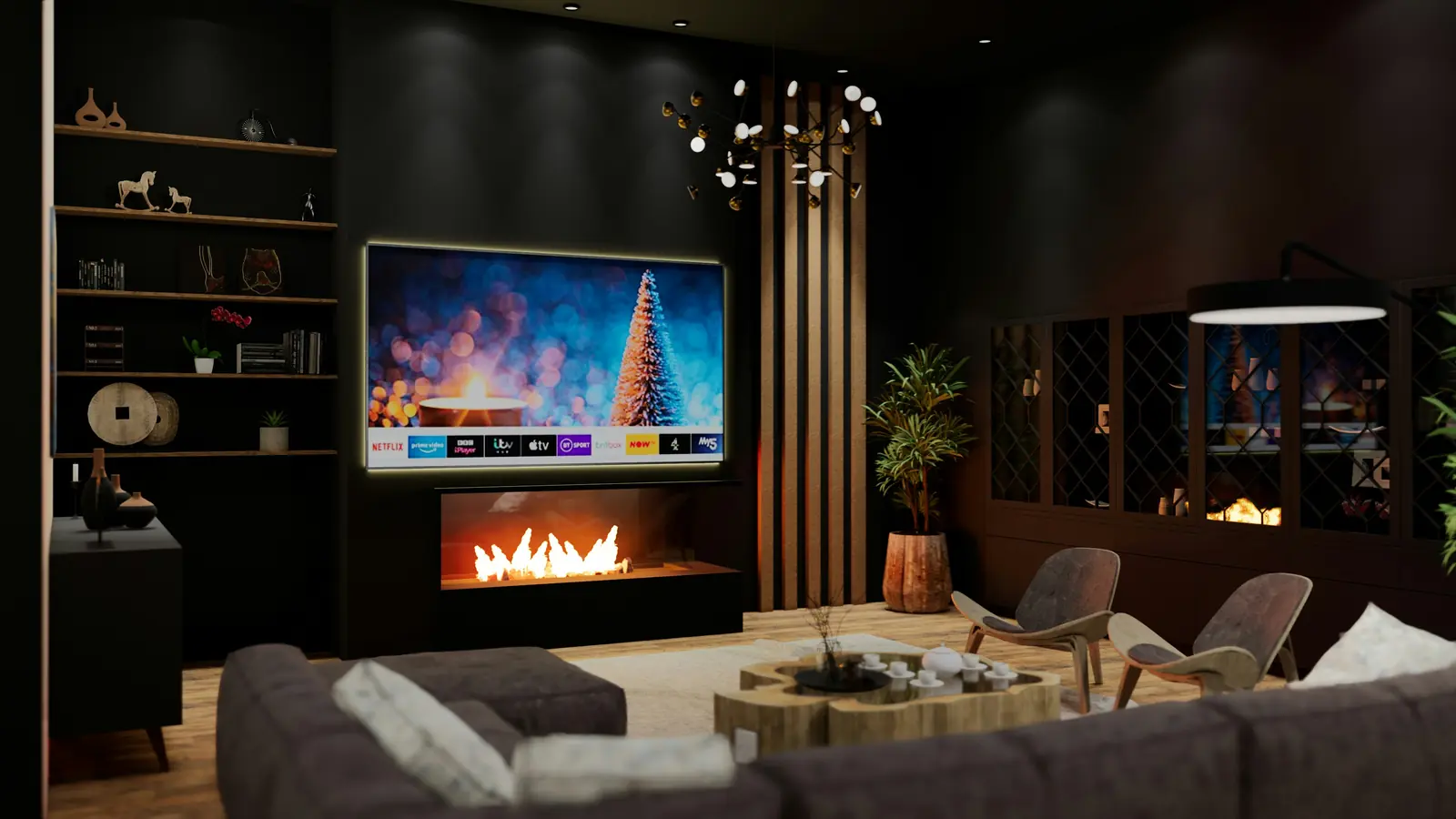
A living room with a large TV mounted above a fireplace

Three simple steps

How setup works on every device.

  1. 01

    Get your login details

    After payment confirmation, or when support issues your trial, you receive your details by email: usually a server address, username and password, or a playlist link.

  2. 02

    Install a compatible player

    Choose a player available for your device that supports Xtream Codes logins or M3U playlists. Players are third-party apps with their own terms.

  3. 03

    Sign in and load the guide

    Enter your details exactly as written, let the player load channels and the TV guide, then add your favourites. Support can help if anything does not load.

Your device

Choose your device family.

Player availability depends on your device model, its software and your country. Ask support if your model is not listed.

Amazon Fire TV

Fire TV Stick, Fire TV Cube and Fire TV smart TVs

Install a compatible IPTV player from the Amazon Appstore or, on Fire OS models that allow it, from the player developer’s own download using the Downloader app.

Some newer Fire TV models run Vega OS and only install Appstore apps. Check Settings → My Fire TV → About.

Firestick setup guide

Android TV & Google TV

Google TV streamers, Nvidia Shield, Android TV boxes and many Sony, TCL, Hisense and Philips TVs

Install a player from Google Play, open it and sign in with the details from your welcome email.

Choosing a player

Samsung & LG smart TVs

Samsung Tizen and LG webOS models

Use an IPTV player from your TV’s own app store. Many TV players charge a separate activation fee to their developer, so check the app’s terms first.

Apple TV, iPhone & iPad

tvOS, iOS and iPadOS

Choose an App Store player that supports an Xtream Codes login or an M3U playlist, then add your Platinum IPTV details.

Android phones & tablets

Phones and tablets with Google Play

Install a mobile IPTV player from Google Play. Many players sync the same layout you use on your TV.

Windows & Mac

Laptops and desktop computers

Use a desktop IPTV player that supports Xtream Codes or M3U playlists. A general media player can open a playlist, but usually without a full TV guide.

MAG, Formuler & set-top boxes

Portal-based IPTV boxes

Some boxes sign in with a portal address and the box’s MAC address instead of a username. Ask support whether your model is supported before you order.

Living-room TV
TV, tablet & phone

Players & licences

Your subscription, your choice of player.

Platinum IPTV is the subscription; the player is a separate app from an independent developer. Any player that supports Xtream Codes logins or M3U playlists can work, and some charge their own licence or premium fee.

Device questions

No. Any compatible player that supports an Xtream Codes login or an M3U playlist can work. Pick one that is available for your device and that you find easy to use.

No. Players are separate third-party apps. Some are free, others charge their developer for a licence or premium features.

As many of your own devices as you like. The number of connections in your plan is how many of them can play at the same time.

Roku only installs apps from its own channel store, and IPTV player options there are limited and change often. Ask support before choosing Roku; Fire TV, Android TV and Google TV devices offer far more player choice.

A stable broadband connection matters more than a headline speed. 4K needs considerably more bandwidth than HD, so use a wired connection or strong 5 GHz Wi-Fi for the best picture, and ask support if you are unsure.

Want to test your device first? Request a free 24-hour trial.